

Welcome to the second part of our series! In the first part, we got an idea about the basic structure of a spreadsheet, such as Row, Column, and Cell.
Today, we won’t waste time on any theoretical discussion. We will directly open Excel or Google Sheets and learn how to add, subtract, multiply, and divide in detail.
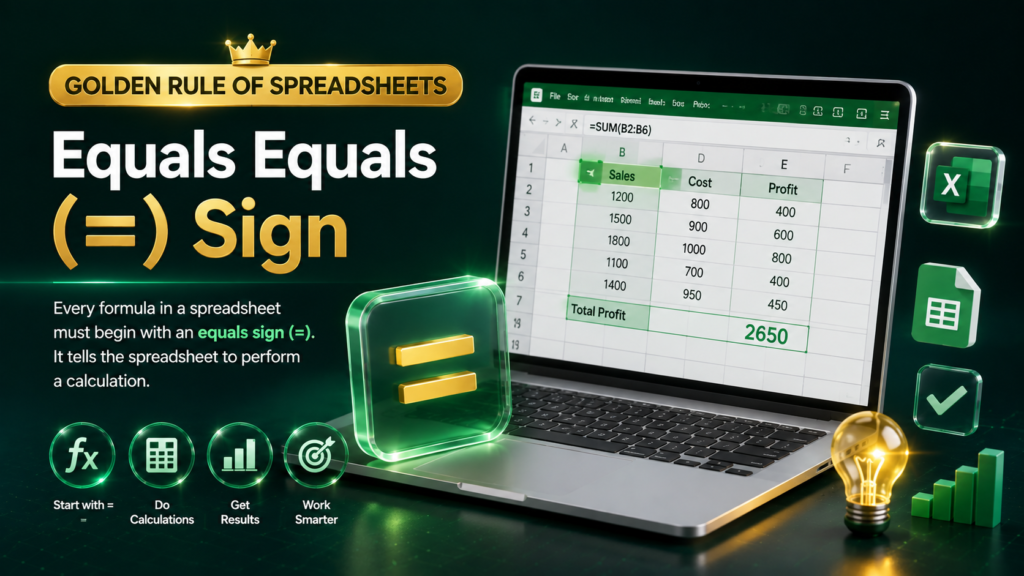
🔑 Golden Rule of Spreadsheets: “Equals equals (=)” sign
The small cells you see when you open Microsoft Excel or Google Sheets on your computer or mobile are called Cells. Each cell has a specific name (such as A1, B2, etc.).
When you write something simple in a cell (such as 10+5), Sheets will treat it as simple text. But if you want the computer to do the calculation for you, you must follow the first and main rule of spreadsheets:
Before starting any formula or mathematical calculation, the = (equals) sign must be entered as the first character in the cell.
➕ 1. Addition : We will use the simple plus (+) sign to perform mathematical addition.
(A) Method 1: Directly by number (Basic)
1. Click on any empty cell in the spreadsheet.
2. Type: =50+30
3. Press Enter on the keyboard (tap on the green check mark if on mobile).
4. The answer will immediately appear in the cell: 80
B) Method 2: Using cell references or names (Dynamic & Professional)
In real life, we do not type numbers directly, but rather work with the data in the cell.
1. In cell A1, type: 50
2. In cell B1, type: 30
3. Now go to cell C1 and type: =A1+B1
4. Press Enter. The result in cell C1 will be: 80
💡 What is the benefit of using cell names?
Later, if you change the A1 cell from 50 to 100, the sum in cell C1 will automatically change to 130! You don’t have to calculate again.
➖ 2. Subtraction
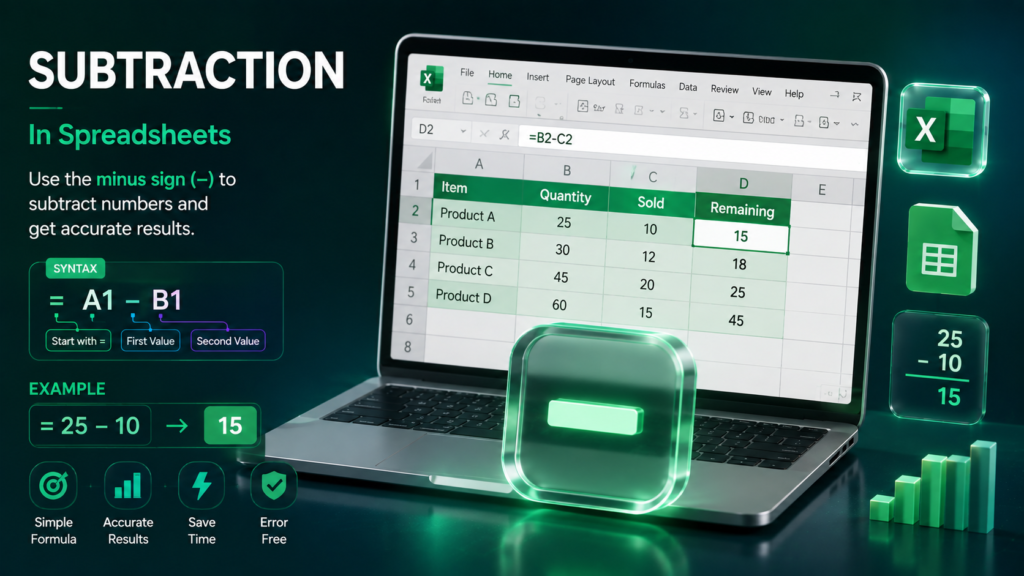
The process of subtraction is as simple as addition, only you have to use the minus (-) sign instead of the plus sign.
Example: Suppose your total budget is 500 taka and you have spent 120 taka. You want to know how much money is left.
- ➖ Direct method: In an empty cell, type =500-120 and press Enter. The result will be 380.
- Cell method:
➖ In cell A2, type: 500
➖ In cell B2, type: 120
➖ In cell C2, type: =A2-B2 and press Enter.
✖️ 3. Multiplication
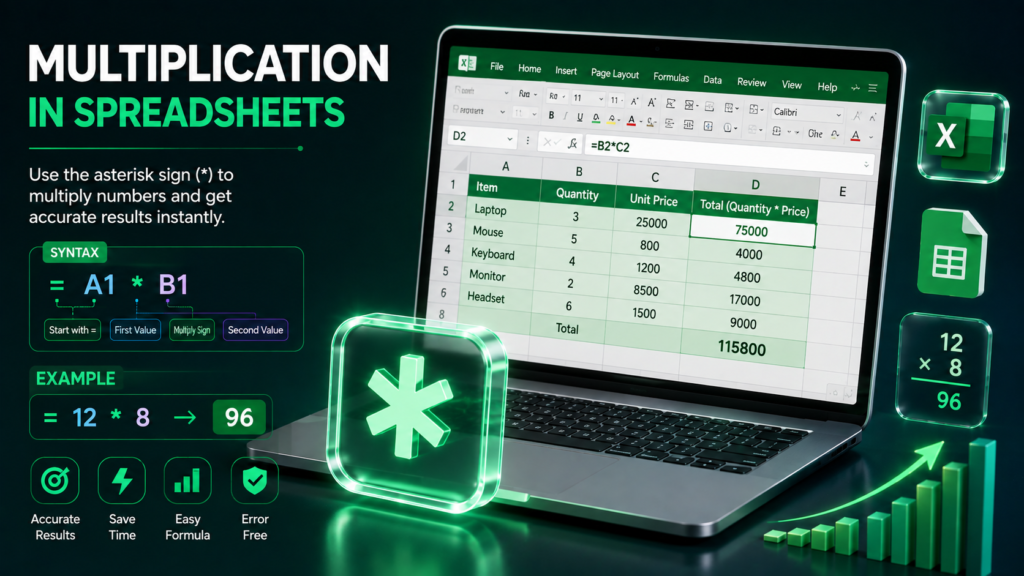
While multiplying on a computer, we cannot use the ‘×’ symbol used in books. In Excel, the asterisk or star (*) symbol is used for multiplication.
- Where to find the symbol?
On the computer keyboard: Hold down Shift and press 8, or press the * button above the number pad (Numpad).
Example: You bought 5 books costing 50 taka each. What is the total price?
- Direct method: Enter =50*5 in the cell and press Enter. The answer will be 250.
- Cell method:
- 1. In cell A3, enter: 50 (price of one book)
- 2. In cell B3, enter: 5 (quantity)
- 3. In cell C3, enter: =A3*B3 and press Enter.
➗ 4. Division

In division, we use the forward slash (/) symbol instead of the ‘÷’ symbol in accounting.
Where can you find the symbol?
On a computer keyboard: You’ll find the / button just to the left of the Shift key or on the number pad.
Example: 500 taka is to be divided equally among 4 friends. How much will each get?
- Direct method: Type =500/4 in the cell and press Enter. The answer will be 125.
- Cell method:
- In cell A4, type: 500
- In cell B4, type: 4
- In cell C4, type: =A4/B4 and press Enter.
🔄 Complex Calculations: Correct Use of Parentheses

Sometimes we need to do multiple calculations at once. For example: (10 + 5) × 2.
The general rule of mathematics BODMAS (first do the bracket work, then divide/multiply, last add/subtract) applies exactly to spreadsheets.
- If you write =10+5*2 — Sheets will first multiply 5 and 2 (10), then add 10. The answer will be 20.
- But if you write =(10+5)*2 with brackets — Sheets will first add 10 and 5 (15), then multiply by 2. The answer will be 30.
📊 At-a-glance symbol summary quick-sheet
| Mathematical work | Keyboard symbols | Sample formula | Results |
| Addition | + | =20+10 | 30 |
| Subtraction | – | =20-10 | 10 |
| Multiplication | * | =20*10 | 200 |
| Division | / | =20/10 | 2 |
| Mixed account | () All inclusive | =(20+10)*2 | 60 |
🎯 Small task to do by yourself (Practice Task)

To understand the matter clearly, try practicing the following small calculation in your Excel or Google Sheets right now:
- Open your Excel or Google Sheets app.
- In cell A1, type: 250 (let’s say this is your income)
- In cell A2, type: 80 (let’s say this is your expense)
- In cell A3, type: =A1-A2 and press Enter.
If the answer in the cell is 170, then congratulations! You have learned the basic arithmetic of spreadsheets.
Next episode:
The Magic of SUM Function & AutoSum! Learn how to sum thousands of numbers with one click.