
What is a word processor? Explain its main features and characteristics.
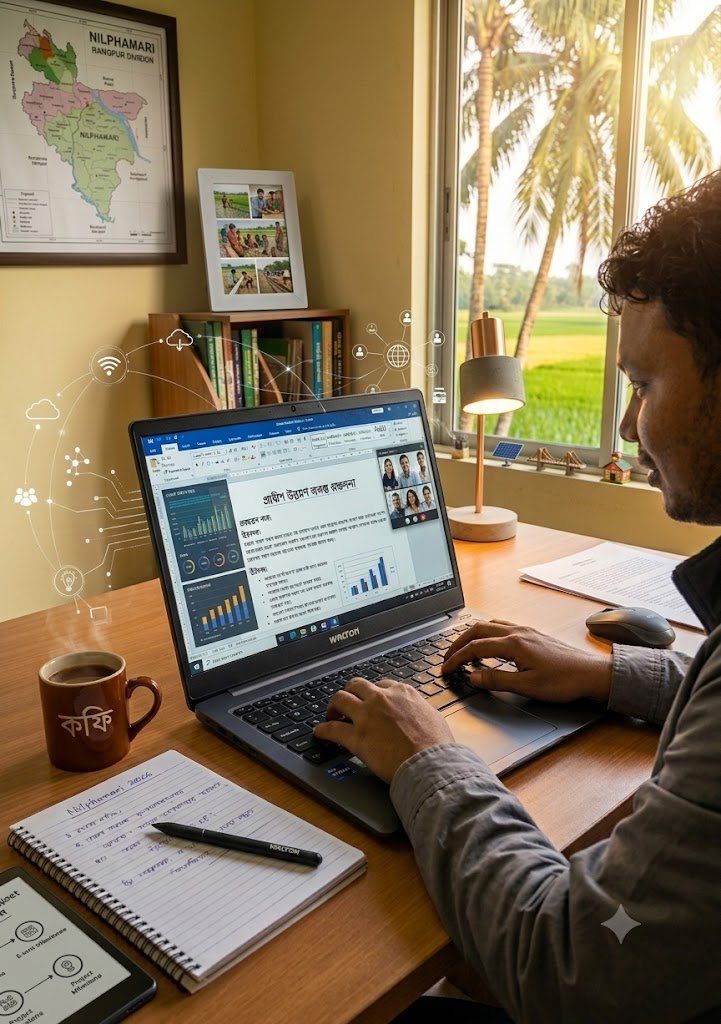
In simple terms, a word processor is a type of computer software or application that can be used to do all the work of text or writing.
Earlier, people used to write by hand on a typewriter or notebook. But with the help of a word processor, any text can be typed, formatted, corrected and printed on a computer very easily.
Some popular word processors: Microsoft Word, Google Docs, LibreOffice Writer.
Importance of word processors:
It is very important for students to know a word processor for their studies and future work. Its main advantages are given below:
Saves time: You can type quickly and you can easily get the work done by copying and pasting instead of writing the same thing over and over again.
Easy to correct mistakes: If you make a mistake, you don’t need to rewrite the entire page. You can just delete the wrong word and rewrite it.
Beautiful and attractive presentation: Any assignment or report can be made professional by changing the font, color, size of the text, and adding images or tables.
Safe storage: The texts can be stored permanently on the computer or on the Internet, which is not easily damaged or lost.
Main features of word processors
The main features of word processors can be divided as follows:
Editing: You can add new words anywhere, delete text, or move text from one place to another.
Formatting: You can make the text bold, italic, underlined (\underline{Underline}), and make the font size of the text smaller or larger.
Spelling & Grammar Check: Most word processors show a red dot at the bottom if there is a spelling error and a blue/green dot if there is a grammatical error, which helps you choose the correct word.
Insert Table & Images: You can make your writing easier to read or understand by adding images, charts, symbols, or tables.
Printing: You can see how the created file will look before printing it on paper (Print Preview) and can easily print it as needed.
Auto-Save & Cloud Access: Nowadays, writing in online word processors like Google Docs is automatically saved and can be accessed from any phone or computer.
⌨️ Main Shortcut Keys for Editing/ 🎨 Shortcut Keys for Text Formatting:
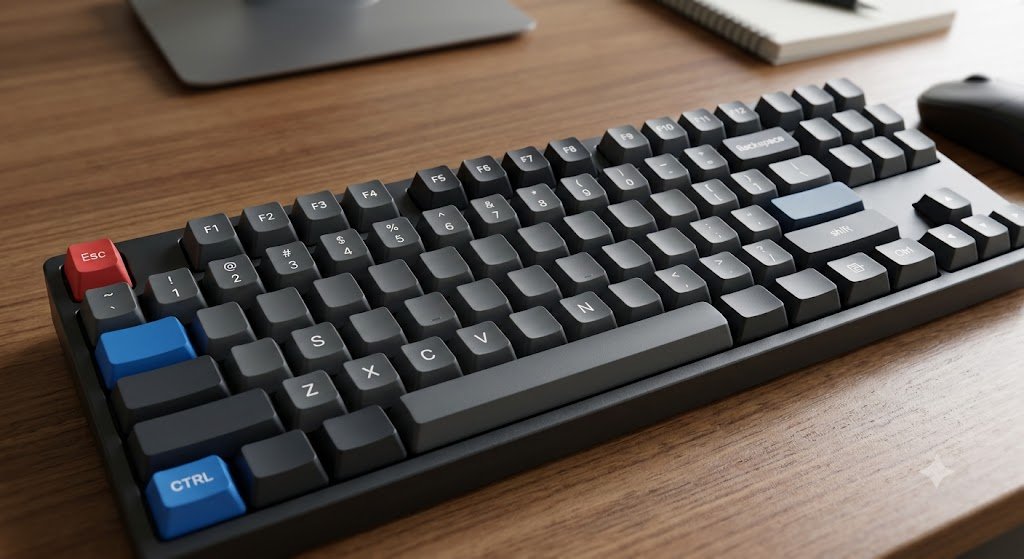
Description Keyboard Shortcuts The following shortcuts are also widely used to make text beautiful along with text editing:
Select All = Ctrl + A Bold Text: = Ctrl + B
Copy Text = Ctrl + C Italic Text: = Ctrl + I
Cut Text = Ctrl + X Underline Text (Underline): = Ctrl + U
Paste Copy or Cut Text = Ctrl + V Center Align: = Ctrl + E
Undo Mistakes = Ctrl + Z Save Document: = Ctrl + S
Redo Undo Actions = Ctrl + Y
Find Words or Text = Ctrl + F
Replace Words = Ctrl + H
Spelling & Grammar Check = F7
📑 16 Specific Benefits of Using a Word Processor
- Editing: Files can be edited accurately and if there is a mistake, it can be easily deleted or corrected and the text can be rearranged.
- Adding New Text: New text or paragraphs can be added anywhere in the document at any time.
- Text Formatting: Font Size, Font Style, and color can be changed as desired.
- Spelling and Grammar Check: Spelling and grammatical errors can be easily identified and corrected by using ‘Spell Checker’ or auto-correct.
- Cut, Copy, and Paste: A text can be copied and placed anywhere without typing it repeatedly.
- Find & Replace: Find and replace a specific word in a long document with one click.
- Create tables and charts: Create tables, rows, and columns to present information in a beautiful way.
- Add images and graphs: Add images, pictures, charts, graphs, and shapes to your document.
- Header, footer, and page number: Automatically add the title, date, or page number at the top or bottom of each page.
- Page setup and margins: Customize the document’s page size (A4, Letter) and margins.
- Use templates: Use predefined ready-made layouts or templates for professional CVs, letterheads, or reports to get the job done quickly.
- Mail Merge: Keeping the same letter or notice content intact, separate letters can be created for hundreds of different people at once.
- Permanent Storage: Files can be saved in digital form on a hard disk, pen drive or cloud forever.
- Easy Print: You can select pages according to your needs and print as many copies as you want at any time.
- Security and Password: Passwords can be used to keep important files secret or secure.
- Easy Sharing and Email: Any document can be sent as a digital file without any paper files.
I’m ending this post here!
The rest of the ‘My Writing and Accounting’ chapter (e.g., more uses of word processing, Excel formulas and calculations) will be published in the next post very soon.
Stay tuned for regular updates. If you have any questions or comments about the post, don’t forget to comment below!
Fine , I like it.